這是本文件的舊版!
網站取得用戶真實 IP 的方法
- 目前網站的網路架構愈來愈複雜, 要取得用戶真實的 IP 需要透過特別指定與層層的傳遞才有機會取得, 以下透過一個實驗環境的架構案例進行說明
graph TD
%% 1. 定義主要節點 - 移除括號
A[Client - 1.2.3.4]
B{Cloudflare CDN}
C[Host A - Cloudflared]
D[Host B - 192.168.1.100:80 - NPM]
E[Backend Service - dokuwiki_dokuwiki:80]
R([Response])
F[Docker Swarm Overlay Network - rproxy-net]
%% 2. 結構化 - 邏輯分區
subgraph Edge & Host A
A -- HTTPS --> B
B -- Encrypted Tunnel --> C
end
subgraph Host B Docker Swarm & NPM
%% Host A 到 Host B 的連線
C -- HTTP - LAN 192.168.1.x --> D
%% NPM 經由 Overlay Network 到後端
D -- HTTP --> E
end
subgraph Backend Service
E -- dokuwiki-net 接入 --> F
end
%% 3. 主要流程連線
A --> B
B --> C
C --> D
D --> E
E --> R
%% 4. 補充細節/網絡連線
D -- 連線使用 rproxy-net --> F
F -- 服務名稱解析 --> E
如果沒有特別設定, 因為 Docker Swarm 預設 Port Mode:Ingress 所以在 Backend Service 看到的用戶 IP 就會是 docker networks 的 ingress overlay 的 IP 網段 Exp. 10.0.0.0/24
1. NPM 必須要將 Port Mode 改成 Host
- NPM 的 Stack 部署設定, 要特別處理, 只能在特定 Host 上面, 以下是範例
services: nginx-proxy-manager: image: jc21/nginx-proxy-manager:latest ports: - target: 80 published: 80 mode: host # 重要:使用 host mode - target: 443 published: 443 mode: host - target: 81 published: 81 mode: host volumes: - npm-data:/data - npm-letsencrypt:/etc/letsencrypt networks: - rproxy-net deploy: replicas: 1 # NPM 本身不適合多副本 placement: constraints: - node.labels.rproxy == true # 只部署在有 rproxy label 的節點 - 因為是 host 模式, 所以需要在特定 Swarm Host 上設定 Label Exp. swarm-100(192.168.1.100)
docker node update --label-add rproxy=true swarm-100 - 所以除了這個 IP 之外, 其餘 Swarm Host 的 IP 就無不能連上 NPM 服務
- 在 Cloudflare → Zero Trust → Networks → Tunnels → Your-cf-tunnel → Published application routes 就只能設定這個 IP Exp. www.ichiayi.com → 192.168.1.100:80 (NPM 服務)
2. NPM 內對 Backend Service 網站的設定
- Domain Names : www.ichiayi.com
- Scheme : http
- Forward Hostname / IP : dokuwiki_dokuwiki (假設 Backend Service 的 Stack Name : dokuwiki , Service Name : dokuwiki)
- Forward Port : 80
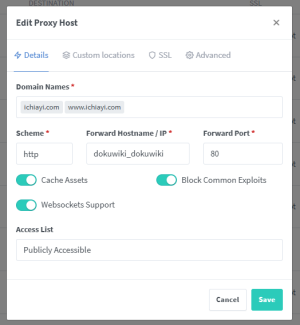
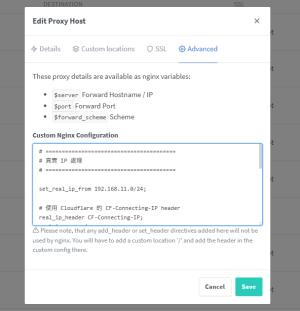


Advanced 的設定說明
- Host 都在 192.168.1.0/24 的網段內, 所以 set_real_ip_from 192.168.1.0/24;
# ========================================
# 真實 IP 處理
# ========================================

set_real_ip_from 192.168.1.0/24;

# 使用 Cloudflare 的 CF-Connecting-IP header
real_ip_header CF-Connecting-IP;
real_ip_recursive on;

# ========================================
# Proxy Headers - 傳遞真實 IP 到後端
# ========================================

# 真實 IP (現在 $remote_addr 已經是真實 IP)
proxy_set_header X-Real-IP $remote_addr;
proxy_set_header X-Forwarded-For $proxy_add_x_forwarded_for;
proxy_set_header X-Forwarded-Proto $scheme;
proxy_set_header X-Forwarded-Host $host;
proxy_set_header Host $host;

# 保留原始 Cloudflare headers
proxy_set_header CF-Connecting-IP $http_cf_connecting_ip;
proxy_set_header CF-Ray $http_cf_ray;
proxy_set_header CF-IPCountry $http_cf_ipcountry;
proxy_set_header CF-Visitor $http_cf_visitor;
- 此時在 NPM 看存取 www.ichiayi.com 的 log 應該就可看到類似以下的紀錄, 可看到真實 IP 出現在 Client 後面 Exp.
:
[03/Oct/2025:11:40:15 +0000] - 200 200 - GET http www.ichiayi.com "/tag/%E4%B8%AD%E5%AD%B8%E5%90%8C%E5%AD%B8?tab_details=history&do=media&tab_files=upload&image=tech%3As_15294475.jpg&ns=tech%2Fmail" [Client 189.1.241.14] [Length 6901] [Gzip -] [Sent-to dokuwiki_dokuwiki] "Mozilla/5.0 (Macintosh; Intel Mac OS X 10_15_7) AppleWebKit/537.36 (KHTML, like Gecko) Chrome/120.0.0.0 Safari/537.36" "https://www.ichiayi.com/tag/%E4%B8%AD%E5%AD%B8%E5%90%8C%E5%AD%B8?tab_details=history&do=media&tab_files=upload&image=tech%3As_15294475.jpg&ns=tech%2Fmail"
:
3. Backend Service 內的 Nginx Config 設定
- 因為這 Backend Service 是 dokuwiki 使用的 image 為 lscr.io/linuxserver/dokuwiki:latest 所以可以透過 custom-cont-init.d 自訂 script 來達成
- 假設 Docker Networks 的 rproxy-net (由 NPM → Dokuwiki 的 overlay network) 網段是 10.0.8.0/24
- 在 custom-cont-init.d 內增加 10-nginx-realip.sh
#!/bin/sh # 腳本名稱: 10-nginx-realip-fix.sh # 目的: 修正 Real IP 設定,將其插入到實際的 Nginx 虛擬主機設定檔 (default.conf) 中。 # Nginx 實際的虛擬主機設定檔路徑 SITE_CONF="/config/nginx/site-confs/default.conf" echo ">> [custom-init] Configuring Nginx Real IP in $SITE_CONF..." # Real IP 配置內容 REAL_IP_CONFIG=$(cat <<EOF # # Real IP 設定 - 信任 Docker Overlay 網路 (NPM IP) # set_real_ip_from 10.0.0.0/8; # 讀取 NPM 傳來的 X-Real-IP 標頭 real_ip_header X-Real-IP; EOF ) # 檢查配置是否已經存在 if grep -q "set_real_ip_from 10.0.0.0/8;" "$SITE_CONF"; then echo ">> [custom-init] Real IP configuration already exists in site-conf. Skipping." else # 這次我們在 'server {' 區塊內的頂部插入配置 SERVER_START='server {' # 使用 sed 在 'server {' 之後插入 Real IP 配置 # 使用 \n 和 \t 來處理換行和縮排 REAL_IP_CONFIG_ESCAPED=$(echo "$REAL_IP_CONFIG" | sed 's/\//\\\//g' | sed 's/^[ \t]*//' | sed ':a;N;$!ba;s/\n/\\n\\t/g') if sed -i "/$SERVER_START/a\\$REAL_IP_CONFIG_ESCAPED" "$SITE_CONF"; then echo ">> [custom-init] Successfully inserted Real IP configuration into site-conf." else echo ">> [custom-init] ERROR: Failed to insert Real IP configuration into site-conf file." exit 1 fi fi # 賦予腳本執行權限 chmod +x "$0" - 需要將這個 script 檔案設唯執行權限 chmod a+x 10-nginx-realip.sh
- 重新啟動 dokuwiki 這個 stack
- 查看 dokuwiki 啟動的容器 log 應該就會出現類似以下的訊息
:
**** Permissions could not be set. This is probably because your volume mounts are remote or read-only. ****
**** The app may not work properly and we will not provide support for it. ****
Existing install found, deleting install.php.
[custom-init] Files found, executing
[custom-init] 10-nginx-realip.sh: executing...
>> [custom-init] Configuring Nginx Real IP in /config/nginx/site-confs/default.conf...
>> [custom-init] Real IP configuration already exists in site-conf. Skipping.
[custom-init] 10-nginx-realip.sh: exited 0
[ls.io-init] done.
:
- 接下來就可以查看 dokuwiki 的 nginx access log 可以出現用戶 IP Exp.
: 15.235.145.214 - - [03/Oct/2025:19:55:15 +0800] "GET /tech/dokuwiki_plugin/poll?do=login§ok= HTTP/1.1" 200 6278 "https://www.ichiayi.com/tech/dokuwiki_plugin/poll" "Mozilla/5.0 (Macintosh; Intel Mac OS X 12.5; rv:114.0) Gecko/20100101 Firefox/114.0" 15.235.145.214 - - [03/Oct/2025:19:55:15 +0800] "GET /tech/dokuwiki_plugin/poll?do=register HTTP/1.1" 200 8469 "https://www.ichiayi.com/tech/dokuwiki_plugin/poll?do=login§ok=" "Mozilla/5.0 (Macintosh; Intel Mac OS X 12.5; rv:114.0) Gecko/20100101 Firefox/114.0" 15.235.145.214 - - [03/Oct/2025:19:55:16 +0800] "GET /tech/dokuwiki_plugin/poll?q=&do=search HTTP/1.1" 200 8417 "https://www.ichiayi.com/tech/dokuwiki_plugin/poll?do=register" "Mozilla/5.0 (Macintosh; Intel Mac OS X 12.5; rv:114.0) Gecko/20100101 Firefox/114.0" 217.113.196.92 - - [03/Oct/2025:19:55:26 +0800] "GET /git?idx=tech%3Alvm HTTP/1.1" 200 21886 "-" "Mozilla/5.0 (compatible; IbouBot/1.0; [email protected]; +https://ibou.io/iboubot.html)" 82.97.199.97 - - [03/Oct/2025:19:55:34 +0800] "GET /tech/pvetips?difftype=inline&do=diff&rev2%5B0%5D=1548307963&rev2%5B1%5D=1597387945 HTTP/1.1" 200 8896 "-" "Brightbot 1.0" :