安裝 openvpn-ui (OpenVPN + 簡易 WebUI) 方案
- 為解決
- DockOVPN (OpenVPN Docker方案) 無 WebUI 可管理 VPN 帳號
- OVPN-Admin (OpenVPN + 簡易 WebUI) 在 Alpine 升級到 3.23 後無法使用的議題
- 因此找到這 openvpn-ui 方案
- 安裝環境
- VM : 1 vCore, 1G RAM, 16G SSD
- OS : Alpine 3.23 + Docker Compose
- 規劃環境
- OpenVPN 內部網路 : 10.0.70.0/24
- 外部聯入 VPN : vpn.ichiayi.com TCP Port 443
安裝設定
- 建立目錄與下載相關檔案
mkdir openvpn-ui
cd openvpn-ui
mkdir -p ./config
wget https://raw.githubusercontent.com/d3vilh/openvpn-server/refs/heads/main/server.conf -O server.conf
wget https://raw.githubusercontent.com/d3vilh/openvpn-server/refs/heads/main/config/easy-rsa.vars -O config/easy-rsa.vars
wget https://raw.githubusercontent.com/d3vilh/openvpn-server/refs/heads/main/config/client.conf -O config/client.conf
wget https://github.com/tryweb/docker-compose/raw/refs/heads/main/openvpn-ui/fw-rules.sh -O fw-rules.sh
wget https://github.com/tryweb/docker-compose/raw/refs/heads/main/openvpn-ui/.env.example -O .env
wget https://github.com/tryweb/docker-compose/raw/refs/heads/main/openvpn-ui/docker-compose.yml -O docker-compose.yml
chmod a+x fw-rules.sh
- 編輯 .env 設定管理者帳號密碼
vi .envhttps://github.com/tryweb/docker-compose/raw/refs/heads/main/openvpn-ui/.env.example
ADMIN_USERNAME=admin
ADMIN_PASSWORD=eyJhIjoixxxxxxxxxxxxxx
https://github.com/tryweb/docker-compose/raw/refs/heads/main/openvpn-ui/.env.example
- 啟動服務
docker compose up -d
登入管理介面進行設定
- 設定 server
- 修改 Port → 443, Proto → TCP
- Push Route (Your Home subnet), Push Redirect-gateway (#註記掉避免所有流量都往 vpn 走), Custom Option Three (增加需要走 vpn 的網段路由)
- 設定 client
- 修改 Connection Address (改成實際對外 Domain Name 或 IP), Connection Port → 443, Proto → tcp
- Redirect Gateway (#註記掉避免所有流量都往 vpn 走)
- 設定憑證預設資料
- 修改 EASYRSA_REQ_COUNTRY → TW, EASYRSA_REQ_PROVINCE → TW, EASYRSA_REQ_CITY→ Taipei
- EASYRSA_REQ_ORG (自己的公司), EASYRSA_REQ_EMAIL (自己的Email), EASYRSA_REQ_OU (自己的部門)
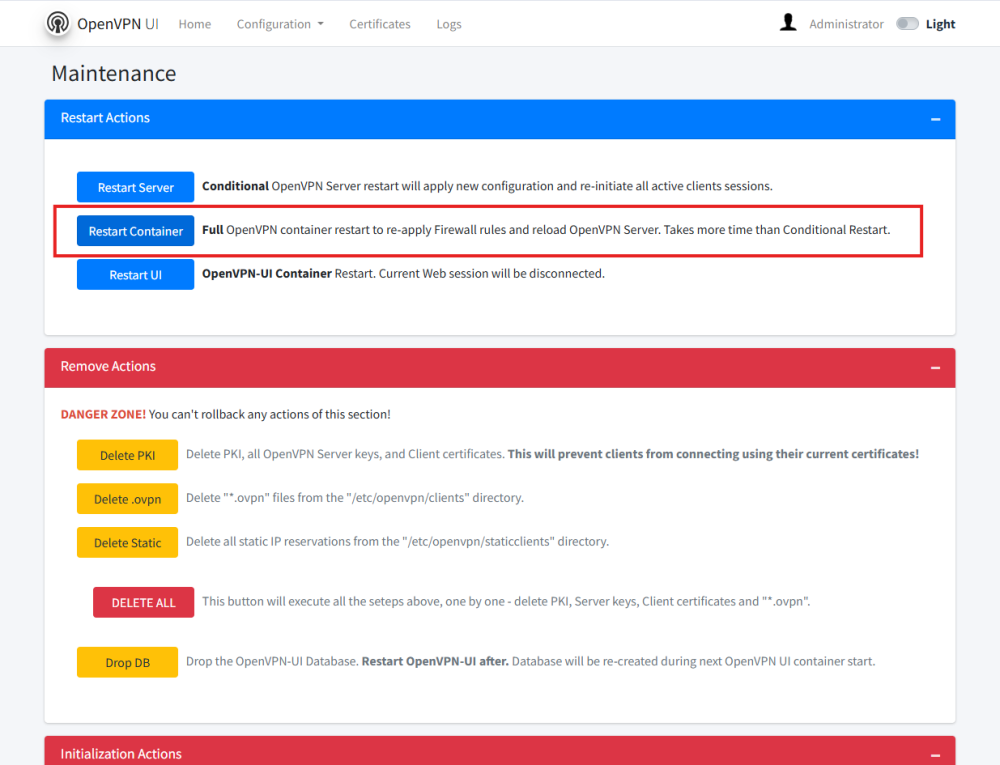
- 重啟容器讓設定生效


建立 VPN 用戶憑證
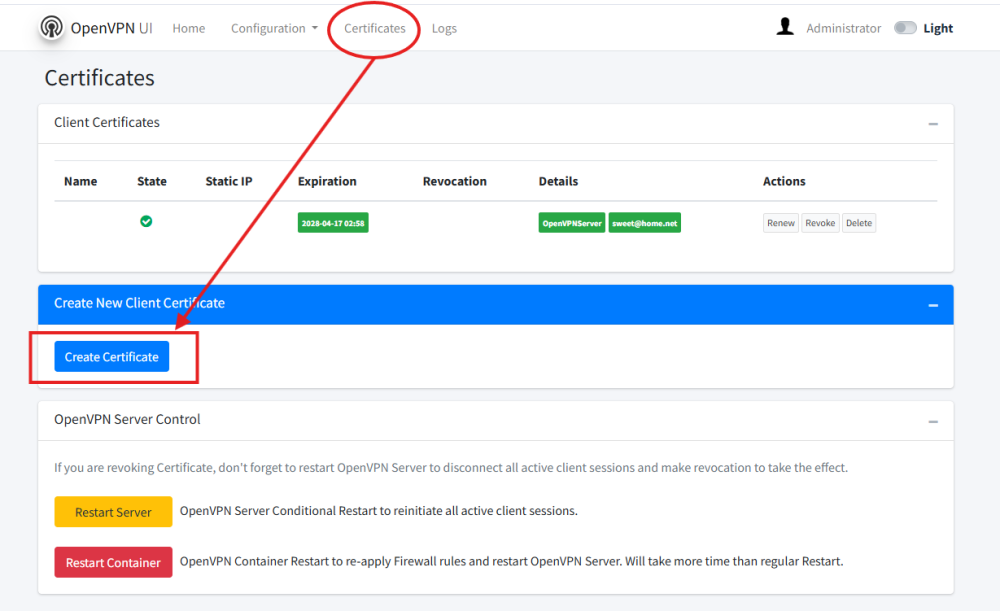
- 輸入用戶相關資訊 Exp. Name → Jonathan, Client Email → [email protected]
- 下載用戶連線憑證


